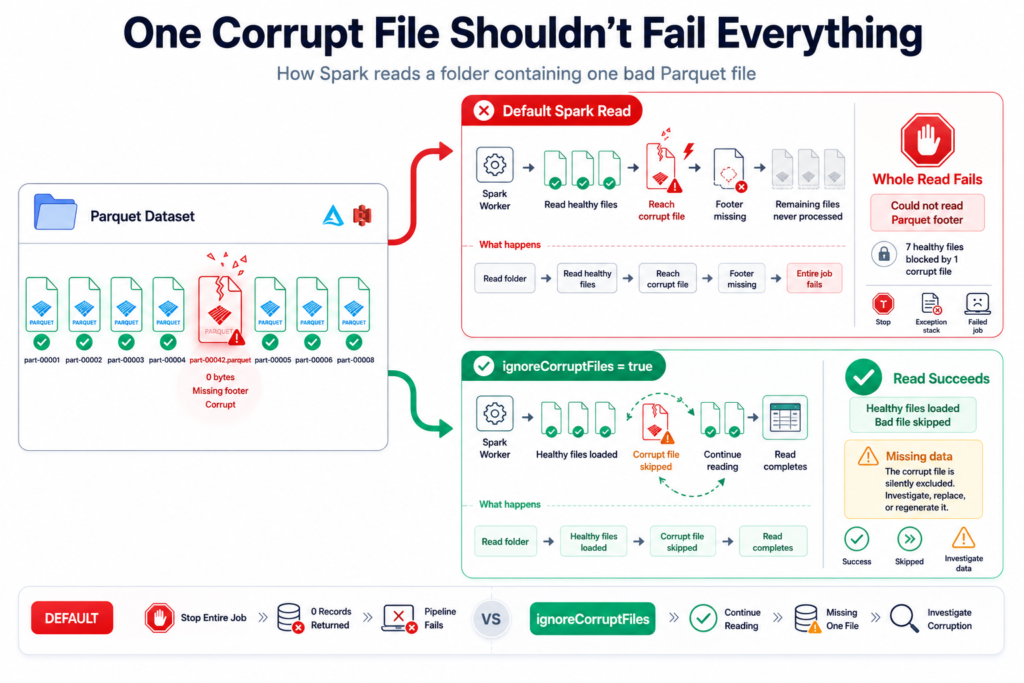
A read that touches thousands of files fails because of one bad one, with something like:
java.io.IOException: Could not read footer for file:
  FileStatus{path=abfss://.../part-00042-....parquet; length=0}

-- or --

RuntimeException: .../part-00042-....parquet is not a Parquet file.
Expected magic number at tail, but found [0, 0, 0, 0]Both mean the same thing: at least one file in the folder is corrupt or incomplete — Spark opened it, couldn’t find a valid Parquet structure, and gave up on the whole read. The frustrating part is that the other 9,999 files are perfectly fine.
⚡ Quick fix
To get your data now, tell Spark to skip unreadable files instead of failing:
spark.conf.set("spark.sql.files.ignoreCorruptFiles", "true")

df = spark.read.parquet("/mnt/data/sales") # bad files are skipped, the rest loadKnow what this does before you rely on it: it silently drops the corrupt files, so you get a result but with missing data. That’s fine for a one-off recovery — it’s dangerous as a permanent setting, because you’ll never notice when data quietly goes missing. Use it to get unblocked, then go find and fix the actual bad file.
What the error actually means
Every valid Parquet file ends with a footer and a “magic number” that says “this is a real Parquet file.” Spark reads that footer to understand the file. If the footer is missing or garbled — because the file is zero bytes, truncated, or isn’t actually Parquet — Spark can’t read it, and by default it fails the entire job rather than return partial data.
Why files get corrupted
- An interrupted write. The single most common cause — a job was killed, the cluster died, or a task failed mid-write, leaving a half-written or zero-byte file behind.
- A partial or failed upload to storage, so the file never fully landed.
- A non-Parquet file in the folder — a stray CSV, a
.crcor temp file, or something copied in by mistake. - Storage-level issues during the write that truncated the file.
Find the bad file
The error message usually names the file — but if you want to sweep the whole folder, zero-byte files are the prime suspects:
# List files and flag empty/suspicious ones
for f in dbutils.fs.ls("/mnt/data/sales"):
    if f.size == 0:
print("empty / likely corrupt:", f.path)Once you’ve identified it, remove or quarantine it and regenerate that data from the source:
dbutils.fs.rm("/mnt/data/sales/part-00042-....parquet")Capture bad files automatically (Databricks)
For pipelines, don’t skip silently — quarantine. On Databricks, badRecordsPath writes the offending files/records to a location you can inspect and alert on, so nothing goes missing without a trace:
df = (spark.read
      .option("badRecordsPath", "/mnt/quarantine/sales")
.parquet("/mnt/data/sales"))The real fix: stop creating corrupt files
Skipping is treating the symptom. The cure is to make half-written files impossible:
- Use Delta Lake. Delta writes are transactional — files are only committed to the table once fully written, so a killed job leaves uncommitted files that readers never see. A corrupt, readable-but-broken committed file simply can’t happen. This is the single best prevention.
- Don’t kill jobs mid-write. Let writes finish, or make them safely retryable.
- Keep the folder clean — only Parquet data files, no stray formats or leftovers.
How to verify it’s fixed
- The read completes without the
ignoreCorruptFilesworkaround turned on — proving no bad files remain. - A row count matches what the source should contain (confirming you didn’t silently lose data).
- No zero-byte files show up in the folder listing.
When it’s actually something else
- Empty path, not corrupt files: “unable to infer schema” means there are no data files at all, which is a different problem.
- Schema mismatch: if files read fine individually but fail together, the issue is clashing schemas, not corruption.
- Permissions: if you can list but not read, that’s an access/credential problem, not a bad file.
Frequently Asked Questions
What does “Could not read footer for file” mean in Spark?
It means Spark opened a Parquet file but couldn’t read its footer, which every valid Parquet file needs. The file is corrupt or incomplete — commonly zero bytes or truncated from an interrupted write — so Spark cannot interpret it and fails the read by default.
How do I skip corrupt Parquet files in Spark?
Set spark.sql.files.ignoreCorruptFiles to true, and Spark will skip unreadable files and return the rest. Use this to recover quickly, but be aware it silently drops the corrupt files, so you should still find and fix the underlying bad file rather than leave it enabled permanently.
Why does one corrupt file fail the whole job?
By default Spark treats an unreadable file as a hard error to protect you from silently returning incomplete results. Rather than quietly skip data, it fails the read so you know something is wrong. You can opt into skipping with the ignoreCorruptFiles setting when that trade-off is acceptable.
How do I prevent corrupt Parquet files?
Use Delta Lake, whose transactional writes only expose fully written files, so interrupted jobs never leave corrupt committed data. Also avoid killing jobs mid-write, make writes safely retryable, and keep data folders free of stray non-Parquet files.
How do I find which Parquet file is corrupt?
Check the error message, which usually names the file, or list the folder and flag zero-byte files as likely culprits. On Databricks you can also use the badRecordsPath option to quarantine bad files automatically so they can be inspected and regenerated from source.