Azure Databricks Instance Types Explained: Which Worker Type to Choose
General Purpose, Memory Optimized, disk cache accelerated, Storage Optimized, GPU — what each one actually solves, and how to read the VM name so the dropdown stops being a guess.
You open the compute page in Azure Databricks, click the Worker type dropdown, and get hit with nine categories: General Purpose, General Purpose (HDD), General Purpose (disk cache accelerated), Memory Optimized, Memory Optimized (Remote HDD), Memory Optimized (disk cache accelerated), Storage Optimized, Compute Optimized and GPU Accelerated — each holding dozens of sizes with names like Standard_E8ds_v5.
So most people do one of two things: leave whatever the default is, or pick something big and hope the problem goes away.
Both are expensive. The default is often wrong for the job, and “just make it bigger” doubles the bill while fixing nothing — because the thing your job was short of wasn’t the thing you added.
This article does two things. First, it decodes the VM name so Standard_E8ds_v5 becomes readable at a glance. Then it walks every category — what it is, what it solves, when it’s the wrong call.
Throughout, we’ll use one running example: a retail company running a nightly pipeline over about 2 TB of Delta data — joining sales to products and customers, then writing aggregates for the morning dashboards.
First, learn to read the name
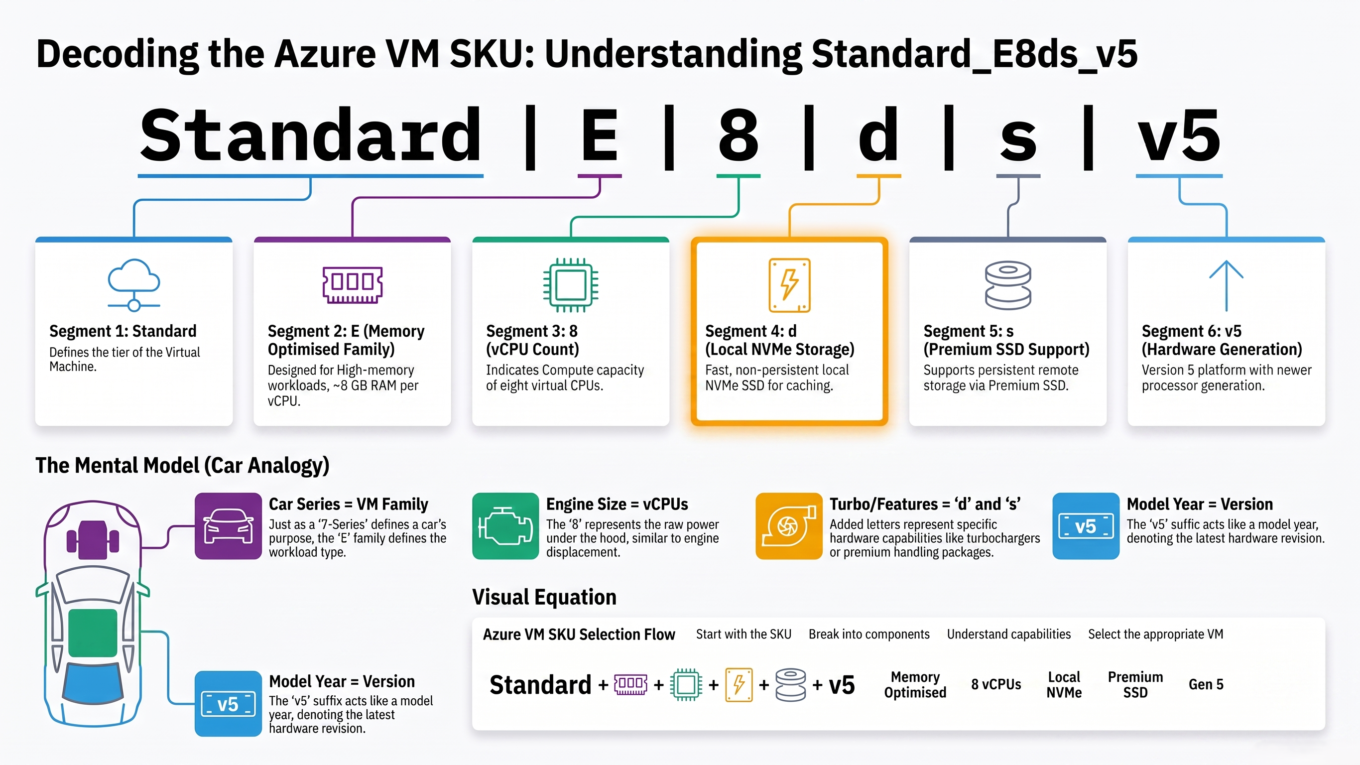
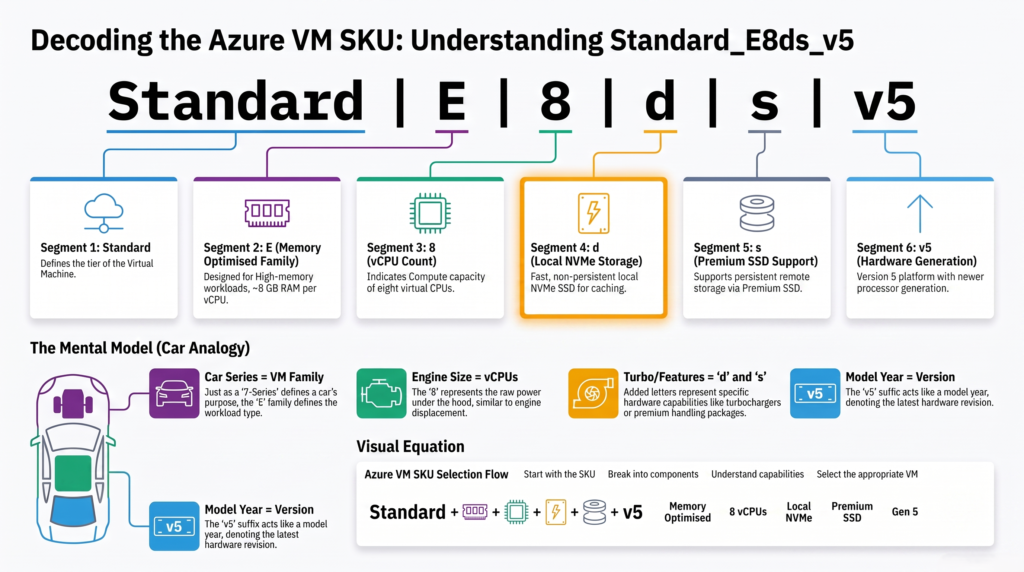
This is the part nobody explains, and it makes the entire dropdown make sense. Azure VM names are not random — every letter means something. Take Standard_E8ds_v5 apart:
Part
What it means
Standard_
Azure’s prefix on everything. Ignore it.
E
Family. E = memory optimized. This is the most important letter.
8
8 vCPUs.
d
Has a local NVMe disk — this is the entire “disk cache accelerated” bit.
s
Premium SSD remote disks — this is what the HDD variants are missing.
v5
Hardware generation. Higher is newer, and usually faster per rupee.
The first letter is the family. It tells you the RAM-to-CPU ratio, which is the single most important characteristic of the machine:
Letter
Family
RAM per vCPU
Built for
D
General Purpose
~4 GB
Balanced — the sane default
E
Memory Optimized
~8 GB
Big joins, wide aggregations, spill
F
Compute Optimized
~2 GB
CPU-heavy work on small rows
L
Storage Optimized
~8 GB + huge local NVMe
Reading the same data over and over
N
GPU Accelerated
varies
Deep learning, model training
Then two small letters do a surprising amount of work:
s — premium SSD remote disks. This is the entire difference between “General Purpose” and “General Purpose (HDD)”. Standard_DS3_v2 gets fast remote disks; Standard_D3_v2 gets slow spinning-disk-tier storage.
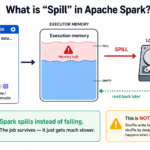
d — a local NVMe disk physically attached to the machine. This is the entire difference between “Memory Optimized” and “Memory Optimized (disk cache accelerated)”. Standard_E8s_v3 has no local NVMe; Standard_E8ds_v5 has 300 GB of it.
That’s the whole trick. A “disk cache accelerated” instance is just a normal instance with a d in the name. Databricks isn’t selling you a different technology — it’s pointing out that the machine has local NVMe, so its caching layer has somewhere fast to put things.
Two more you’ll see: a means AMD EPYC processors instead of Intel (usually cheaper for the same specs), and p means ARM-based Ampere chips.
Once you can read the name, the dropdown stops being a wall of jargon.
The one question that picks the family
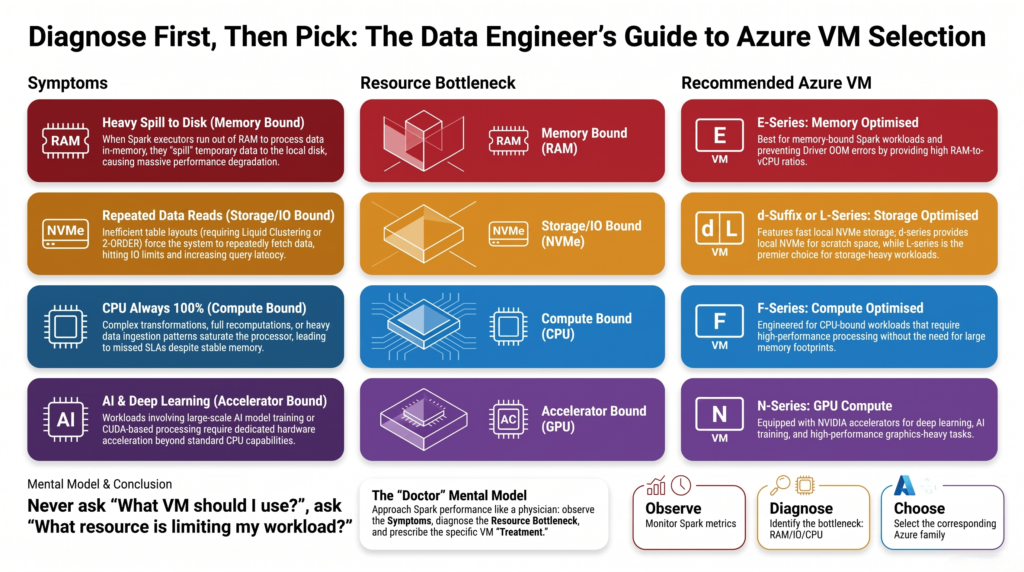
Forget the categories for a second. Every slow Spark job is slow because it ran out of one specific thing. Work out which one, and the family picks itself.
What the job ran out of
What you’d see
Family to reach for
Memory
Heavy spill to disk, OOM errors, GC pauses
E — Memory Optimized
Time re-reading the same data
Fast compute, but every stage re-scans storage
Anything with a d, or L
Raw CPU
Cores pinned at 100%, low memory use
F — Compute Optimized
Nothing in particular
It’s just a normal ETL job
D — General Purpose
GPU
Training a model, not moving rows
N — GPU Accelerated
The trap sits in row two. Most people never consider it — they see a slow job, assume memory, and jump to Memory Optimized. But a pipeline that reads the same dimension tables in five different steps isn’t short of RAM. It’s short of a local cache, and the fix costs less than the memory upgrade.
Diagnose the shortage first. The instance family is the answer, not the question.
General Purpose
What it is: the D family — roughly 4 GB of RAM for every vCPU, premium SSD remote disks, no local NVMe. Sizes like Standard_D8s_v3 (8 vCPU, 32 GB) or Standard_DS3_v2 (4 vCPU, 14 GB).
The cheapest DBU rate of the mainstream families, so it’s the correct place to start.
4 GB per core is enough for filters, projections, straightforward writes and narrow transformations.
No local NVMe, so the disk cache has nowhere fast to live — repeated reads go back to storage every time.
Use it when the job reads data, transforms it, and writes it out without large joins or aggregations. Our retail pipeline’s first stage — landing raw sales files into Bronze — is exactly this. No shuffles, no re-reads, no reason to pay for anything fancier.
Don’t use it when you’re already watching gigabytes of spill in the Spark UI. Adding more D-series workers spreads the problem around instead of solving it.
General Purpose (HDD)
What it is: the same D family, but without the s — Standard_D3_v2 rather than Standard_DS3_v2. The remote managed disks are standard HDD tier instead of premium SSD.
The cheapest thing in the entire dropdown.
The savings are on storage, not compute — same vCPUs, same RAM, slower disks.
Spark writes shuffle data to those disks. When a shuffle spills, an HDD-tier disk becomes the bottleneck for the whole stage.
Use it when the work genuinely never touches disk: development notebooks, small scheduled jobs, ad-hoc exploration on a few gigabytes.
Don’t use it when there’s a join or a groupBy in the code. This is the classic false economy — you save a little per hour and the job runs three times longer, so it costs more. If you’re unsure, don’t pick HDD.
General Purpose (disk cache accelerated)
What it is: the D family with local NVMe attached — the d sizes, like Standard_D8ds_v5 (8 vCPU, 32 GB RAM, 300 GB local NVMe). Same balanced ratio as plain General Purpose, plus somewhere fast to cache.
Databricks turns the disk cache on automatically here. The first time a query reads a Parquet file from storage, a copy lands on the local NVMe in a format tuned for fast reading.
Every later read of that file skips the network entirely.
Costs a little more per hour than plain General Purpose — usually recovered several times over on any workload that reads the same data twice.
Use it when the same data gets read repeatedly. Our retail pipeline joins the product and customer dimensions in four separate steps. On plain General Purpose those dimensions are fetched from storage four times. Here, once.
Don’t use it when every run touches brand-new data and never looks at it again — a pure append-only ingest, for instance. There’s nothing to cache, so you’re paying for an idle NVMe drive.
Memory Optimized
What it is: the E family — about 8 GB of RAM per vCPU, double General Purpose. Standard_E8s_v3 gives 8 vCPU and 64 GB, where Standard_D8s_v3 gives 8 vCPU and 32 GB.
Solves exactly one problem: not enough memory to hold the working set of a shuffle.
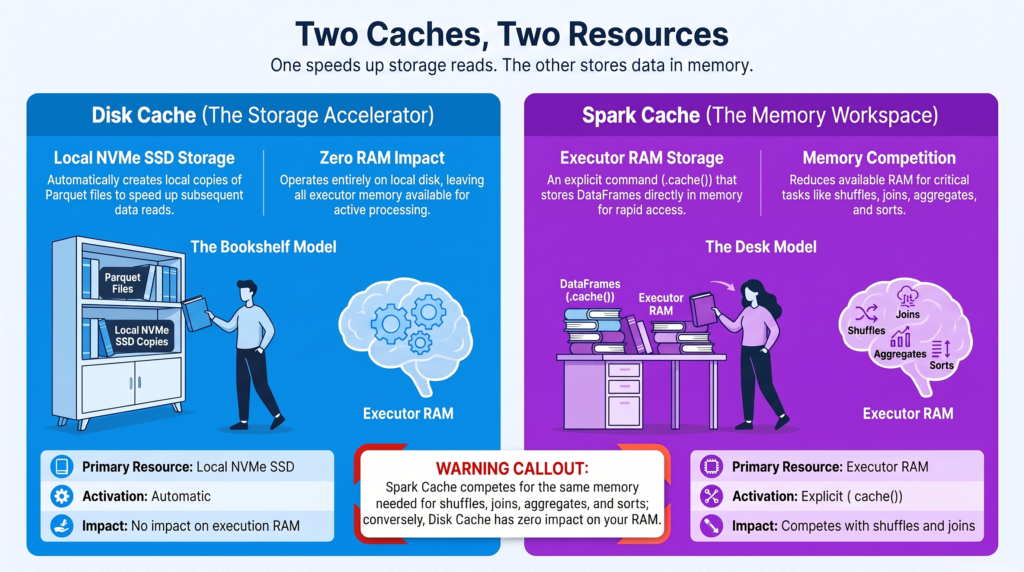
Fixes spill, which is the quiet killer — Spark doesn’t fail, it just starts writing intermediate data to disk and slows to a crawl.
Same core count as the equivalent D size, so it does not make CPU-bound work faster. You’re buying RAM, not speed.
Use it when the Spark UI shows real spill, or you’re hitting out-of-memory errors on the executors. Our retail pipeline’s big step — joining a year of sales to customers and aggregating by region — is the one stage that needs this.
Don’t use it when the memory error is on the driver rather than the executors. That’s usually a collect() pulling a large result back, or an oversized broadcast join — and a bigger worker won’t touch it. We covered that case in Spark Driver OOM: Why collect() and Broadcast Joins Crash Your Job.
Also don’t use it when one task runs forever while the rest finish quickly. That’s skew, not memory, and no instance type fixes it — see Fix Spark Data Skew in Joins.
Memory Optimized (Remote HDD)
What it is: the E family with standard HDD-tier remote disks instead of premium SSD. Lots of RAM, slow storage underneath.
Cheaper than standard Memory Optimized, and the reasoning is the same trade as the General Purpose HDD tier.
The logic is that with enough RAM you shouldn’t be hitting disk anyway.
When that assumption breaks, it breaks badly — a spill onto HDD is far more painful than a spill onto SSD.
Use it when you’ve measured the workload, know it fits comfortably in memory, and want the discount on a long-running predictable job.
Don’t use it when data volumes vary between runs. You bought memory precisely because this workload is at risk of spilling — then put the slowest possible disk behind it. On a heavy month it will crawl.
Memory Optimized (disk cache accelerated)
What it is: the sweet spot for most serious Databricks work. The E family with local NVMe — Standard_E8ds_v5 or Standard_E8ds_v4: 8 vCPU, 64 GB RAM, 300 GB local NVMe.
Large memory for shuffles and automatic disk caching for repeated reads.
Local NVMe also gives spill somewhere fast to land, so the occasional overflow costs far less.
Newer generations (v5, v6) typically deliver better performance per rupee than v3 — if Standard_E8s_v3 is your habit, compare it against Standard_E8ds_v5.
Use it when you’re running production ETL that joins large tables and re-reads dimensions — which describes most real pipelines. If our retail team had to run the whole nightly job on one cluster type, this is it.
Don’t use it when the job is small. This is a genuinely more expensive machine, and a 5 GB job doesn’t need 64 GB per worker.
Storage Optimized
What it is: the L family — around 8 GB of RAM per vCPU like the E family, but with an enormous local NVMe drive. Standard_L8s pairs 8 vCPU and 64 GB with well over a terabyte of local storage.
Disk cache is the whole point. Instead of caching a few hot files, you can hold a serious slice of the dataset locally.
The difference against a d-suffixed E size is scale: 300 GB of cache versus more than a terabyte.
Databricks specifically recommends this tier for analytics and for machine learning training, where the same data is read again and again.
Use it when a cluster stays up and serves many queries over the same tables — a BI or SQL warehouse cluster, an analyst’s exploration cluster, or an ML training loop doing repeated passes over a training set.
Don’t use it when the cluster is short-lived. A job cluster that starts, runs once and terminates never fills the cache — you paid for a terabyte of NVMe to use a fraction of it once. The cache is local disk, so it dies with the cluster.
Compute Optimized
What it is: the F family — about 2 GB of RAM per vCPU. Standard_F8s is 8 vCPU with just 16 GB. Half the memory of General Purpose at the same core count.
The rarest choice on this list, and that’s usually correct.
Suits work that burns CPU on small amounts of data: heavy string parsing, regex, complex maths, simulations.
Most data engineering is not CPU-bound. It’s I/O and shuffle bound.
Use it when you have measured evidence that cores sit at 100% while memory sits mostly unused.
Don’t use it when you’re guessing. Picking F because “my job is slow, so it must need more CPU” is how you turn a slow job into a failing one.
GPU Accelerated
What it is: the N family, with actual graphics cards attached. Standard_NC8as_T4_v3 gives you an NVIDIA T4; the A100 and H100 sizes go considerably further.
Requires the Databricks Runtime for Machine Learning — the GPU drivers and CUDA libraries don’t exist on the standard runtime.
By far the most expensive tier per hour.
Ordinary Spark work does not use the GPU at all. A SQL join, a Delta write, a groupBy — all CPU. The card sits idle while you pay for it.
Use it when you’re training deep learning models, fine-tuning, or running GPU-accelerated inference.
Don’t use it for ETL. This is the single most costly wrong click on the page. If you want your SQL and DataFrame work to go faster, that’s Photon — a vectorised CPU engine you enable with a checkbox, no GPU involved.
All of it in one table
Category
Example size
vCPU
RAM
Local NVMe
Solves
General Purpose
Standard_D8s_v3
8
32 GB
—
Everyday ETL
General Purpose (HDD)
Standard_D3_v2
4
14 GB
—
Lowest cost, dev work
General Purpose (disk cache)
Standard_D8ds_v5
8
32 GB
300 GB
Repeated reads, modest memory
Memory Optimized
Standard_E8s_v3
8
64 GB
—
Spill and OOM
Memory Optimized (Remote HDD)
Standard_E8_v3
8
64 GB
—
Cheap RAM, predictable jobs
Memory Optimized (disk cache)
Standard_E8ds_v5
8
64 GB
300 GB
Big joins + repeated reads
Storage Optimized
Standard_L8s
8
64 GB
~1.4 TB
Long-lived analytics, ML training
Compute Optimized
Standard_F8s
8
16 GB
—
CPU-bound work on small rows
GPU Accelerated
Standard_NC8as_T4_v3
8
56 GB
1× T4
Deep learning only
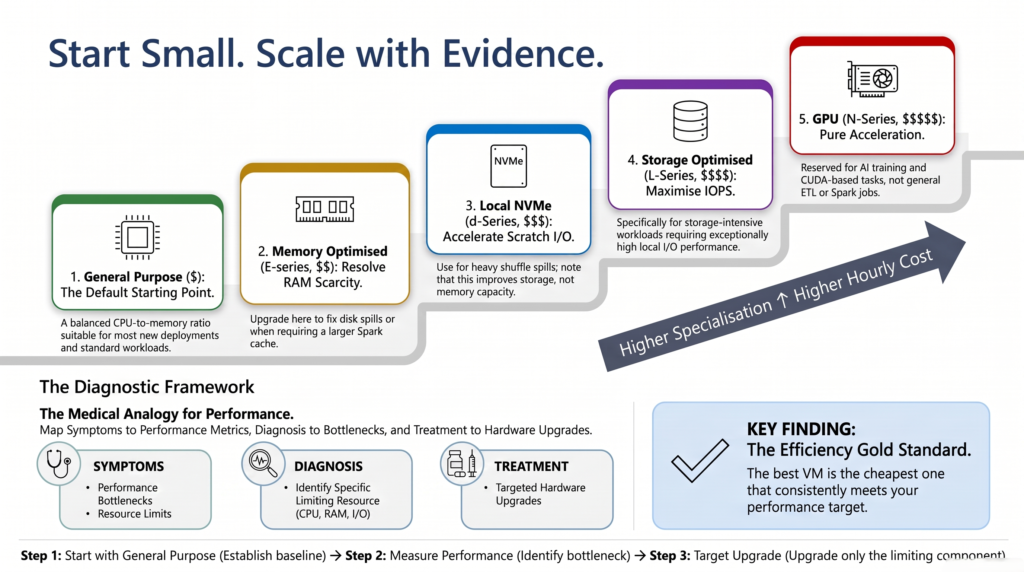
Start at the bottom rung. Only climb when something measured tells you to.
Disk cache is not the same as .cache()
This trips up a lot of people, and it matters because half the categories above are named after it. Databricks has two completely separate caching systems.
Disk cache (formerly Delta cache)
Spark cache (.cache())
Lives in
Local NVMe disk
Executor memory
Triggered by
Automatic — no code
You call it explicitly
Stores
Copies of Parquet files from storage
The result of a DataFrame
Costs you
Disk space you already paid for
RAM your shuffles wanted
Needs
An instance with local NVMe
Any instance
Survives
Across queries and notebooks
Until unpersisted or evicted
They aren’t alternatives — they solve different problems and work fine together. But notice the fourth row. Calling .cache() on a big DataFrame takes memory away from the shuffles that needed it, which can create the exact spill you were trying to avoid. Disk cache has no such downside, which is a large part of why picking a d instance is often the better move.
Disk cache runs by default on instance types that have local NVMe. To check or control it:
# Is the disk cache switched on?spark.conf.get("spark.databricks.io.cache.enabled")# Turn it on explicitly (only useful on an instance with local NVMe)spark.conf.set("spark.databricks.io.cache.enabled", "true")
Setting this to true on an instance without local NVMe achieves nothing. The d in the name is what makes it real.
Two different caches, two different resources. Only one of them competes with your shuffles.
The mistakes that quietly cost the most
Jumping to Memory Optimized for a problem that isn’t memory. Slow job, no diagnosis, double the RAM. If the real issue was repeated remote reads, you just paid roughly twice as much and the job runs about the same. Check the Spark UI for spill before you upgrade — if spill is near zero, memory was never the constraint.
Choosing HDD to save money on a shuffle-heavy job. The saving is per hour. The cost is a job that takes far longer. On anything with joins this reliably loses.
Storage Optimized on a short-lived job cluster. A cache that never gets warm is just an expensive idle disk. Storage Optimized earns its price on clusters that stay up.
Staying on old generations out of habit.Standard_E8s_v3 is a fine machine that has been superseded twice. The v5 and v6 equivalents generally do more work per rupee, and the ds versions add local NVMe at the same time. This is often the easiest win available.
Forgetting there are two bills. You pay Azure for the VM and Databricks for the DBUs, and both scale with the instance you pick. Moving from General Purpose to Memory Optimized raises both numbers, not just one. That’s covered in more depth in Databricks Clusters Explained: Why My Pipeline Doubled the Bill.
Ignoring the shape of the cluster. Two workers with 16 cores and 128 GB each is the same total capacity as eight workers with 4 cores and 32 GB — but they behave very differently. Fewer, larger workers shuffle less data across the network, which is why Databricks recommends them for complex joins. See repartition vs coalesce in Spark for how that interacts with partitioning.
How to tell you picked wrong
Don’t guess twice. Run the job once, open the Spark UI, and look at the Stages tab for the slowest stage:
Spill (Memory) and Spill (Disk) are large → not enough RAM. Move up to Memory Optimized.
Spill is near zero but the job is still slow → RAM is fine. Look at input size instead; if the same bytes are read in several stages, you want a d instance.
One task takes far longer than every other task in the stage → skew. No instance type will help.
Every task is short but there are tens of thousands of them → too many small files or over-partitioning. That’s a data layout problem — see Liquid Clustering vs Z-ORDER vs Partitioning.
Two settings worth knowing regardless of which family you choose. Spot instances cut VM cost substantially on jobs that can tolerate a worker disappearing. Instance pools keep VMs warm so clusters start in seconds instead of minutes — a real saving when you run many short jobs.
The takeaway
The dropdown looks complicated because the names are dense, not because the decision is. The first letter gives you the RAM-to-CPU ratio: D balanced, E memory-heavy, F CPU-heavy, L storage-heavy, N graphics. A d means local NVMe, which is the only thing “disk cache accelerated” ever meant. An s means fast remote disks, which is the only thing the HDD variants are missing.
Start at General Purpose. Move only when something you measured tells you to — spill sends you to Memory Optimized, repeated reads send you to a d instance, a long-lived analytics cluster sends you to Storage Optimized, and nothing but model training should send you to a GPU. For most production pipelines that reasoning lands on a memory optimized instance with local NVMe, which is why Standard_E8ds_v5 and its siblings show up on so many well-tuned clusters.
Frequently Asked Questions
What does “disk cache accelerated” mean in Azure Databricks?
It means the instance has a local NVMe SSD physically attached, so Databricks can automatically keep copies of Parquet files read from cloud storage on that local disk. Later queries read from local NVMe instead of over the network. In the VM name it’s the d, as in Standard_E8ds_v5. This feature used to be called the Delta cache and was renamed to disk cache.
What is the difference between General Purpose and General Purpose (HDD)?
Only the remote disk tier. Both give you the same vCPUs and RAM, but the HDD variants use standard hard-disk-tier managed disks while the regular ones use premium SSD. The letter s in the name marks the faster option — Standard_DS3_v2 versus Standard_D3_v2. Since Spark writes shuffle data to those disks, HDD variants slow down badly on any job with joins or aggregations.
When should I use Memory Optimized instead of General Purpose?
When you can see the job spilling to disk or throwing out-of-memory errors on the executors. Memory Optimized doubles the RAM per core, from roughly 4 GB to roughly 8 GB, but keeps the same core count — so it fixes memory pressure and does nothing for CPU-bound work. Check the spill columns in the Spark UI before switching, because a slow job with no spill has a different problem.
Do I need GPU instances to speed up Spark SQL?
No. Standard Spark SQL and DataFrame operations don’t use the GPU at all, so a GPU cluster runs them at CPU speed while charging the highest rate on the platform. GPU instances are for training deep learning models. To speed up SQL and DataFrame work, enable Photon, which accelerates queries on ordinary CPU instances.
What is the difference between Storage Optimized and disk cache accelerated instances?
Scale. Both have local NVMe and both run the disk cache, but Storage Optimized (the L family) carries far more of it — over a terabyte on Standard_L8s against 300 GB on Standard_E8ds_v5. Choose Storage Optimized when a long-lived cluster serves repeated queries over a large dataset. For a job cluster that runs once and shuts down, the extra capacity never gets used.
What do the letters in Standard_E8ds_v5 mean?
E is the memory optimized family, 8 is the vCPU count, d means a local NVMe disk is attached, s means premium SSD remote disks are supported, and v5 is the hardware generation. You’ll also meet a for AMD processors and p for ARM-based ones. Reading the name tells you which dropdown category a size belongs to without looking it up.
Is a newer generation always better?
Usually, on price-performance. A v5 or v6 size typically does more work per rupee than the v3 equivalent, and the newer generations are also where the local-NVMe d variants are most widely available. The caveat is regional availability — not every size exists in every Azure region, so check what your workspace region actually offers.